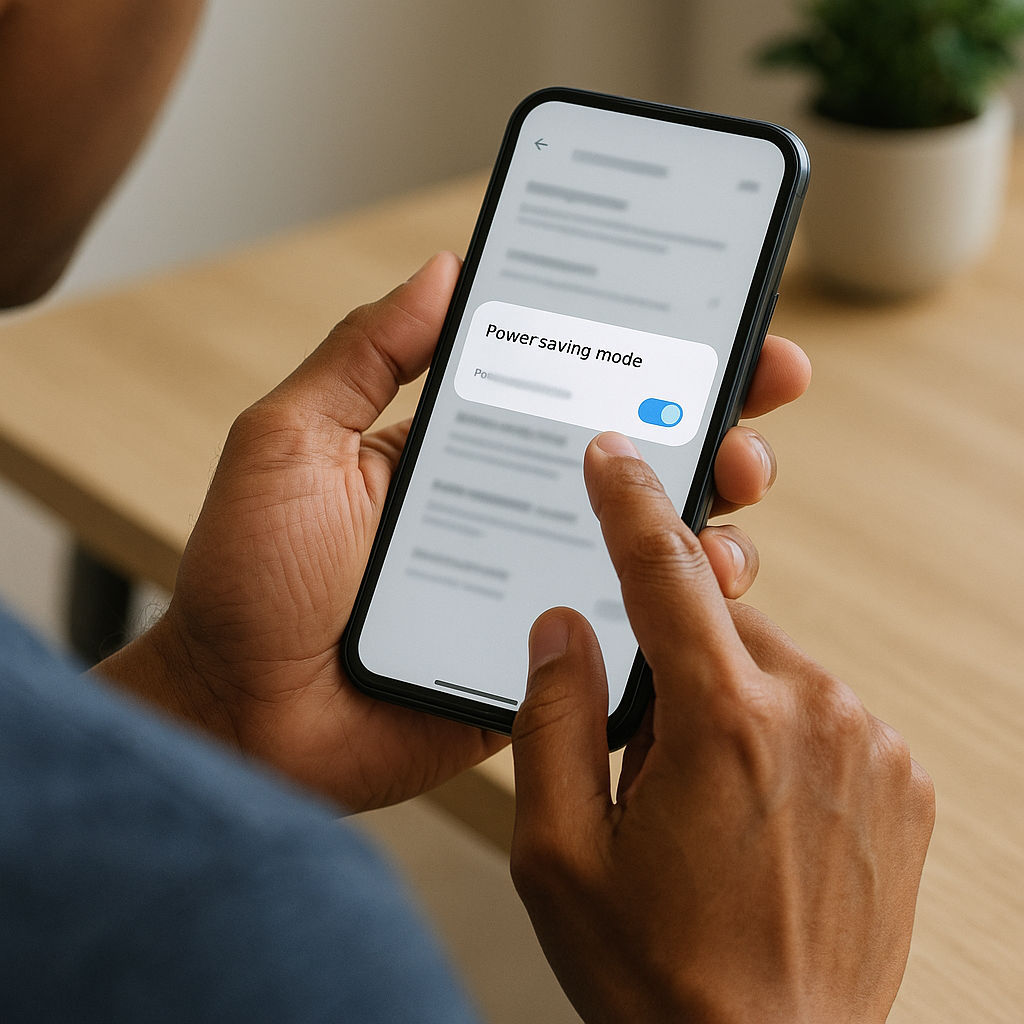
Turn on the power-saving mode on your phone and laptop
Most phones and computers come with an option to manage energy use by automatically minimizing background processes and non-essential effects, and 'sleeping' during inactive periods. This saves energy and extends your device's battery life.
We’re so accustomed to having phones, tablets, and laptops all around us that it’s easy to forget that they’re tiny supercomputers, and the functions they provide quietly and constantly use energy. Many require frequent charging, and besides, all that information on them doesn’t just exist in the cloud—it has to be stored, requested, and processed via physical data centers, with their own operating costs.
Phones and computers of all kinds are so ubiquitous that the energy impact really adds up. Luckily, on practically all of these devices, there’s an easy climate win hiding right in the settings. Power-saving mode reduces how hard your device has to work by way of small changes in system operation that don’t interfere with the device’s function. IT Services at the University of Oxford found that power-saving mode cut desktop energy use by half. A study of Android phones found that it used up to around 33% less power, extending battery life by 50%.
How does this work? Power-saving settings slow down background apps, limit constant refreshing and syncing, dim the screen brightness a little, and generally keep your processor from running at full blast when it doesn’t need to. The click of a button optimizes all these settings so that you can save energy without compromising on performance. Often, you can customize the changes, so if there’s a background or display feature that’s particularly important for you, you can exclude it from being affected.
You can even customize your device to enter power saving mode only when you’re not using it by setting up a Sleep Mode (Apple) or scheduling the battery saver mode to turn on during inactive hours (Android). You can also put computers in Sleep mode when you’re not using them, saving more power by setting the sleep timer to come on after a shorter period of inactivity. This switches to lower power while preserving all your open apps.
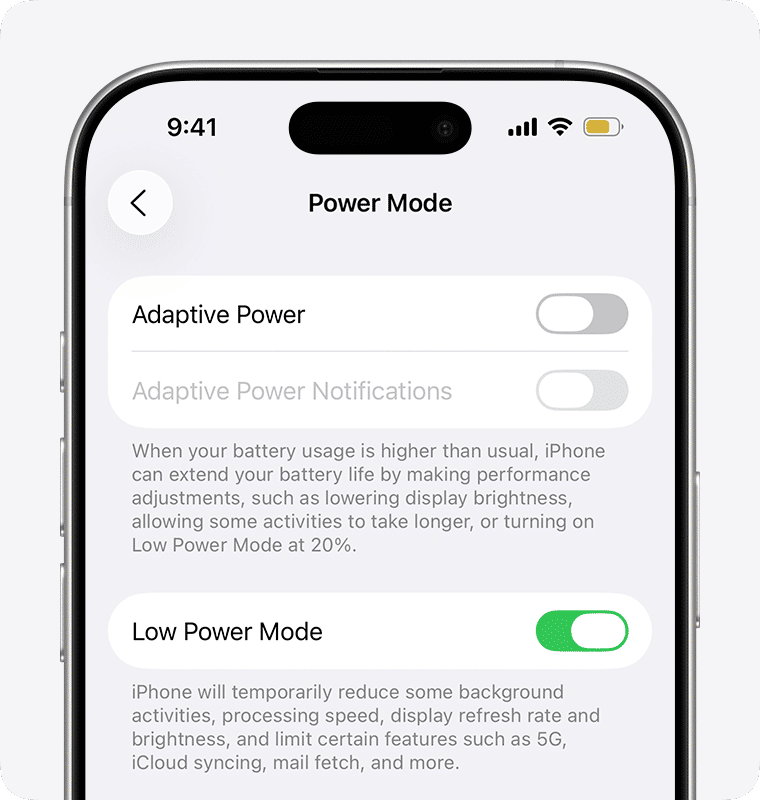
Using power-saving mode is as easy as toggling a switch on your phone | Source: Apple Support
You probably won’t even notice the difference, but these adjustments lighten the energy load. There’s a real benefit for you, too: your battery lasts longer and wears out slower. This saves you charging time and saves money in replacement costs.
To turn on power-saving mode, look up the battery settings on your device. On Apple devices, click Settings > Battery and toggle on Low Power Mode. On Windows, go to System > Power & battery to explore your options.
Want to do more?
Get updates on climate progress and how you can help.